Wireshark Packet Operations Walkthrough
Learn the fundamentals of packet analysis with Wireshark and how to find the needle in the haystack!
Summary
In this room we tested a couple of filters and operators to get the feeling of advance filtering methods and steps. We also used shortcut filtering and changing profiles so we can do some of the final tasks. Overall, an fundamental and important room that will server for bigger a purpose in the future challenges.
Learning Objectives
- Investigate network traffic captures
- View statistics including summary and protocol details
- Uncover and apply packet filtering principles
- Apply protocol filters
- Apply advanced filtering
Task 1.1
Investigate the resolved addresses. What is the IP address of the hostname starts with “bbc”?
Answer: 199.232.24.81
Why? To access the resolved addresses, we have to go to statistics tab then go to resolved addresses. 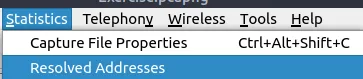
Here we can filter my name or address, we can directly search for bbc. 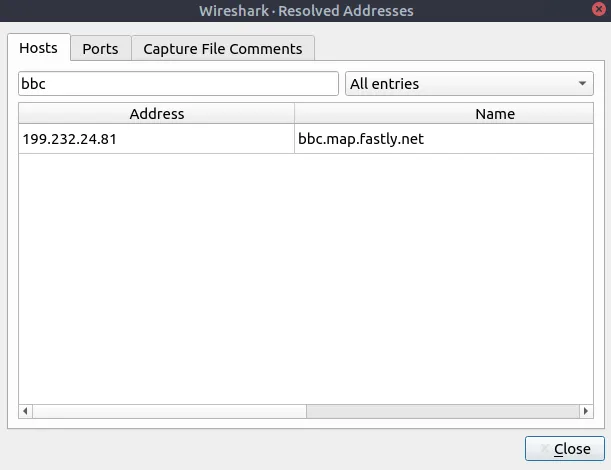
Task 1.2
What is the number of IPv4 conversations?
Answer: 435
Why? Let’s go to Statistics and access Conversations. 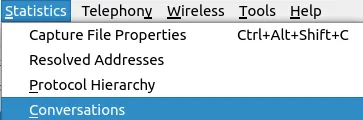
We can straight up look at the upper tabs and at the IPv4 tab lies the answer.
Task 1.3
How many bytes (k) were transferred from the “Micro-St” MAC address?
Answer: 7474
Why? Again, Statistics => Resolved Addresses. 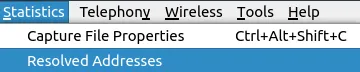
Search for the Mac Address via searching for the name. 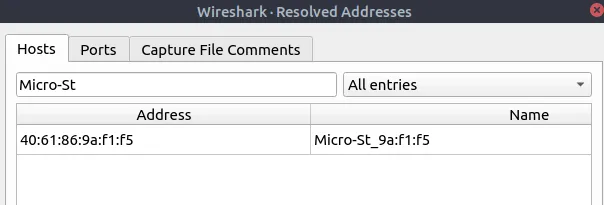
Then Statistics to Conversations 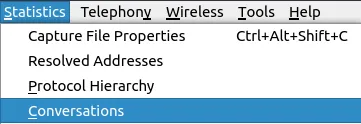
Then search for the specific MAC Address. Then look at the bytes 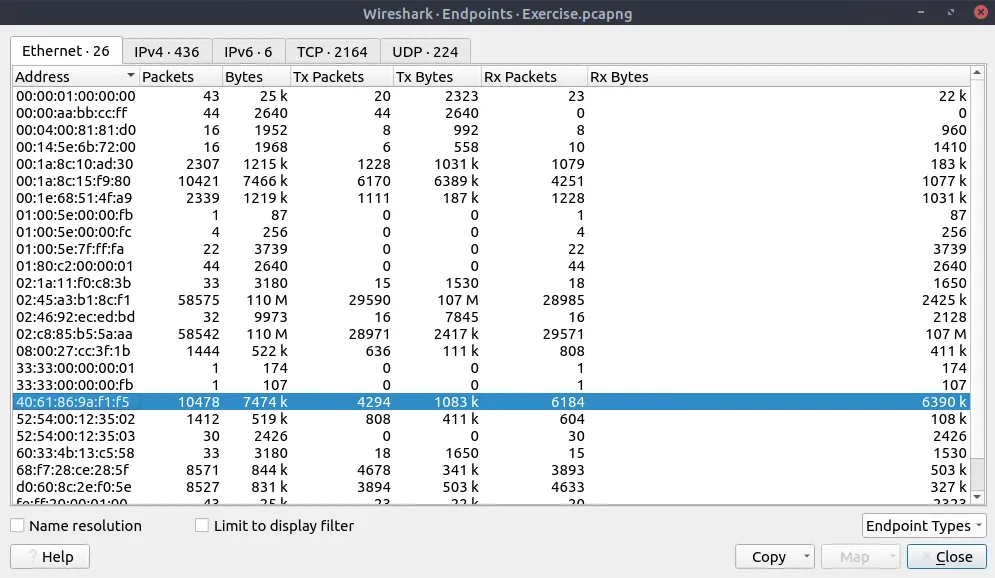
Task 1.4
What is the number of IP addresses linked with “Kansas City”?
Answer: 4
Why? In the same window as the last task, we can sort it by city and look at the Kansas City. Counting them results 4. 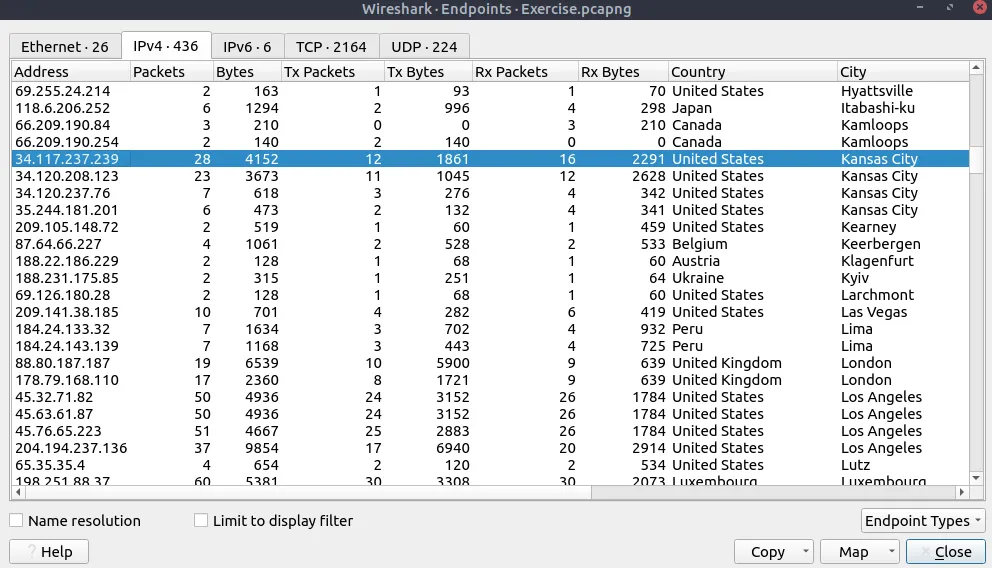
Task 1.5
Which IP address is linked with “Blicnet” AS Organisation?
Answer: 188.246.82.7
Why? Still, at the endpoints window we can sort by AS Organization and look for the specific Blicnet. Sorting it should make it easier due to alphabetical order. 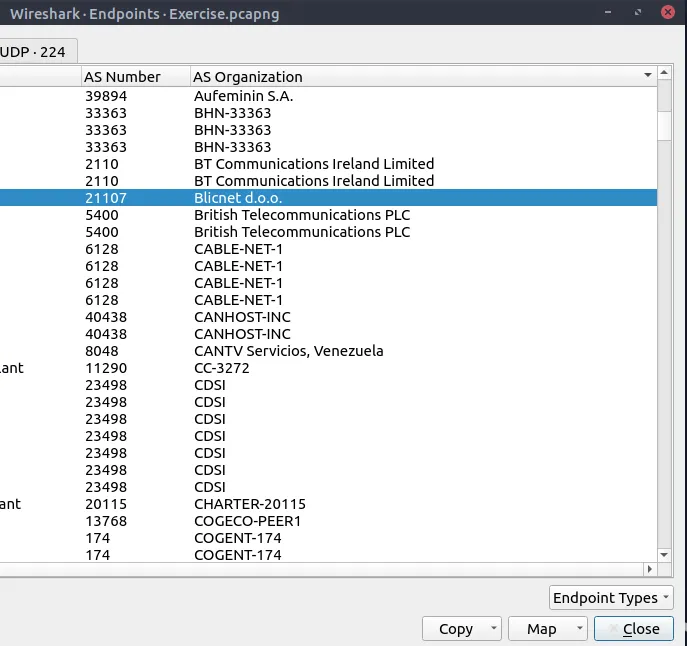
Then move the side bar to the left to reveal the IP Address 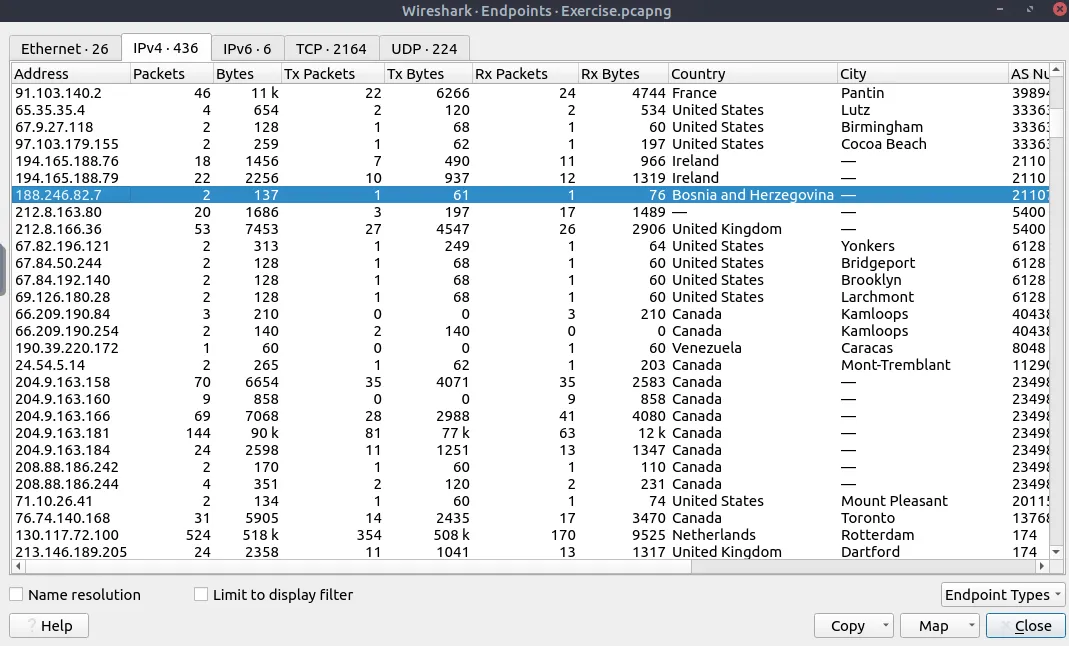
Task 2.1
What is the most used IPv4 destination address?
Answer: 10.100.1.33
Why?
We can go “IPv4 Statistics” -> “Destinations and Ports” 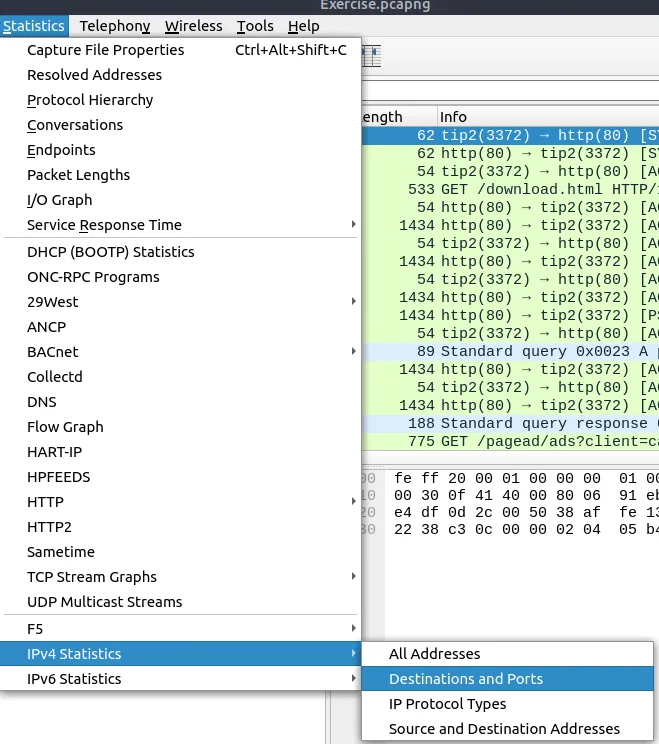
Sort it by percentage to reveal the most used IPv4 address. 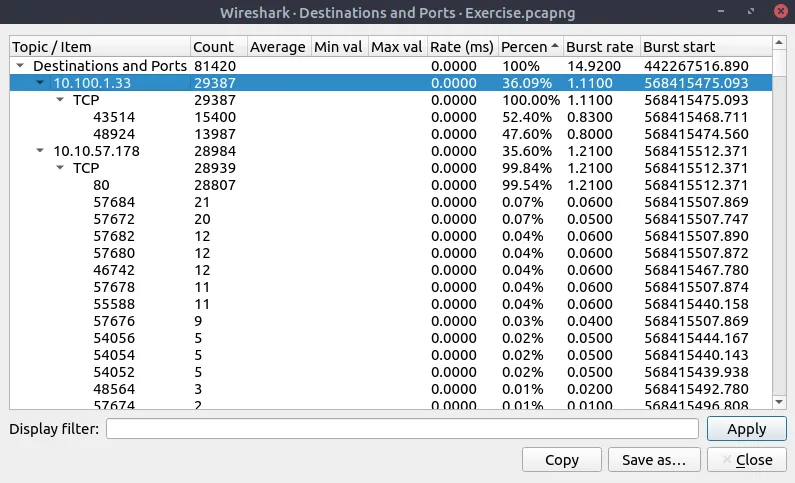
Task 2.2
What is the max service request-response time of the DNS packets?
Answer: 0.467897
Why? We are going to access statistics DNS. 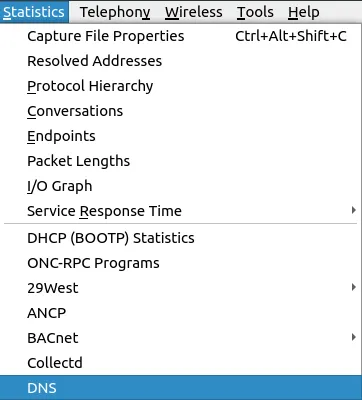
We can scroll down to see “request-response time(secs)” and look at “Max val” to see the max service request and response time of DNS packets. 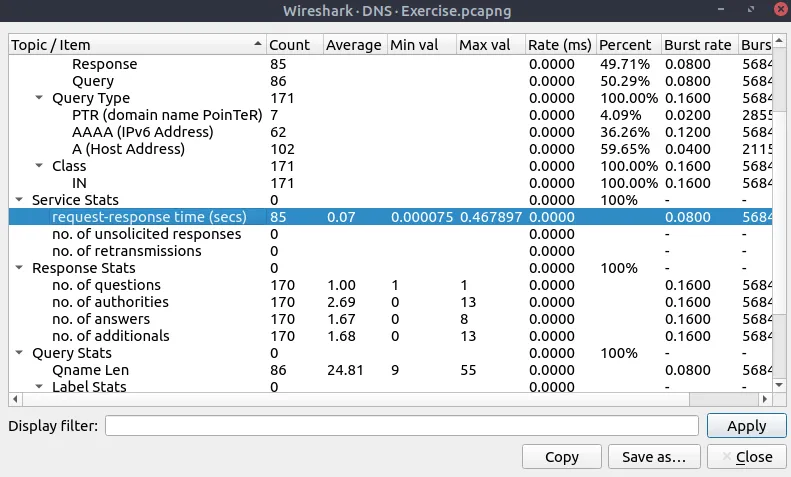
Task 2.3
What is the number of HTTP Requests accomplished by “rad[.]msn[.]com?
Answer: 39
Why? Here, my mistake was thinking based on similar questions that I will need to go to HTTP Requests tab. (You can access it via Statistics -> HTTP -> Requests). 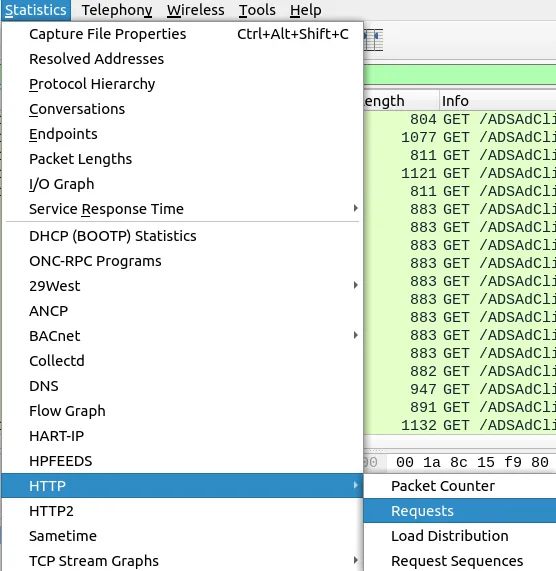
Here, we can see the rad[.]msn[.]com mentioned, but counting it didn’t help. Then I wanted to see all the files that have this exact host. 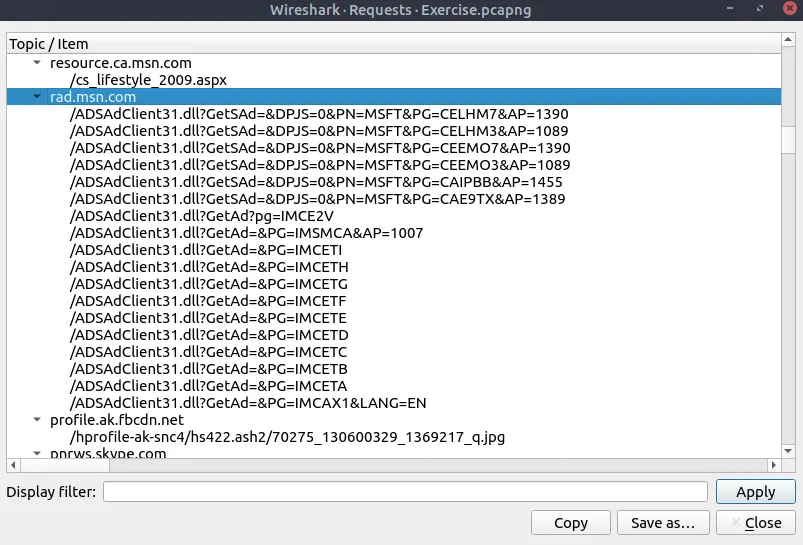
We can do that using http.host. The search will look like this:
http.host == "rad.msn.com"
Then 39 packets are displayed, which was the real value after all. 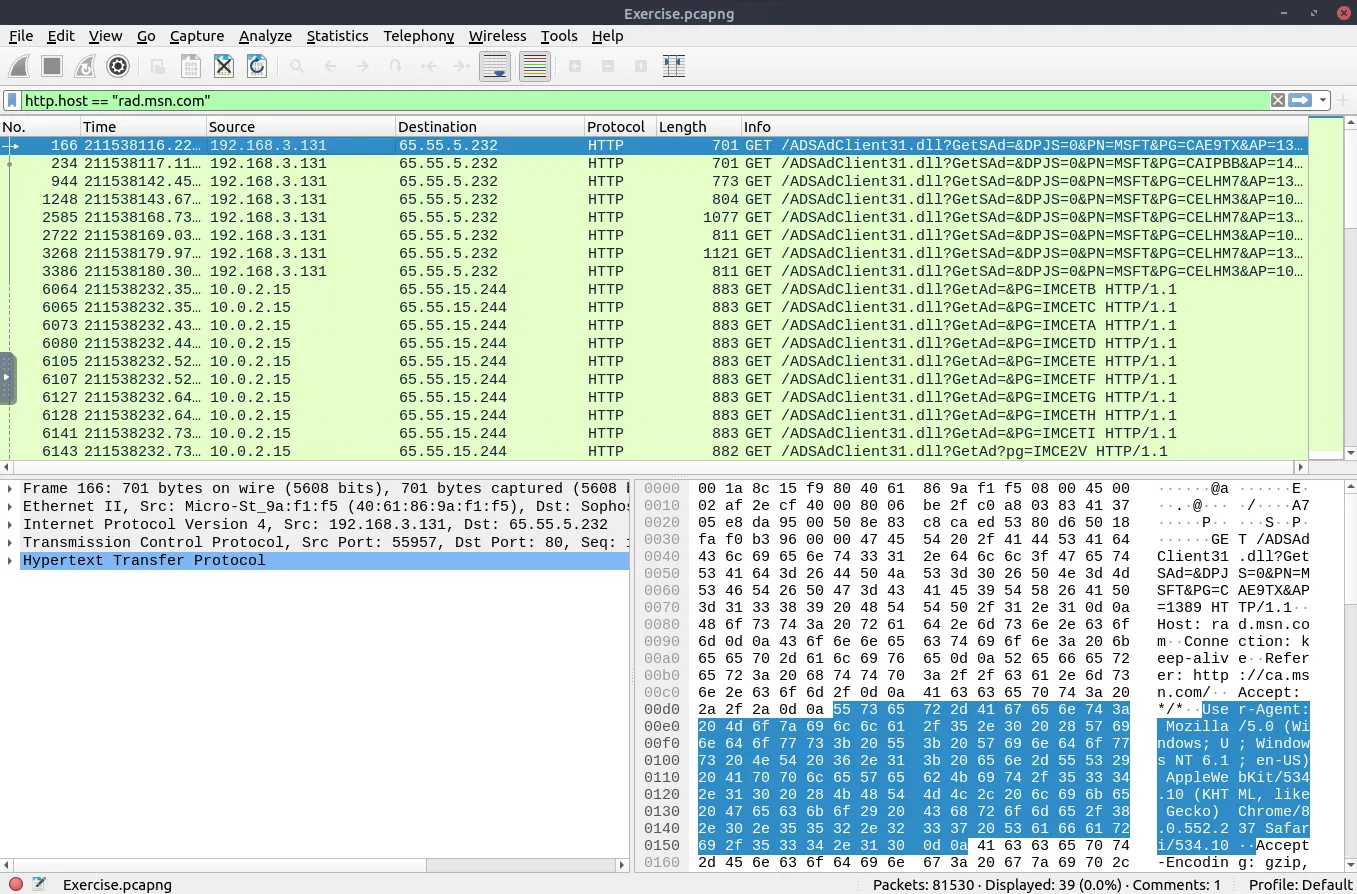
Task 3.1
What is the number of IP packets?
Answer: 81420
Why? Simply type IP in the filter bar and it returns 81420 IPs. 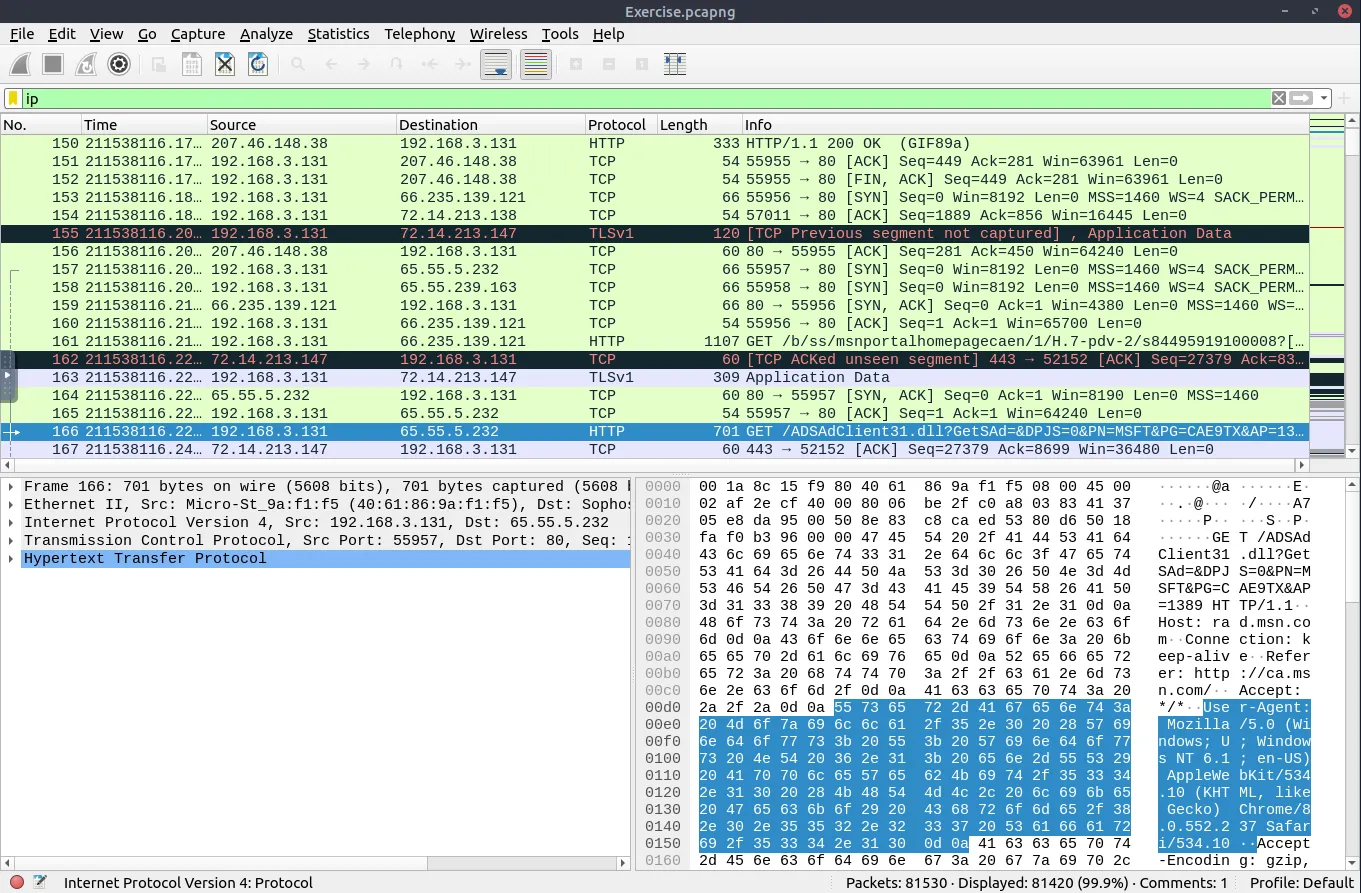
Task 3.2
What is the number of packets with a “TTL value less than 10”?
Answer: 66
Why? The ip.ttl is the filter we are going to use combined with the <= (less) operator and the value of 10. 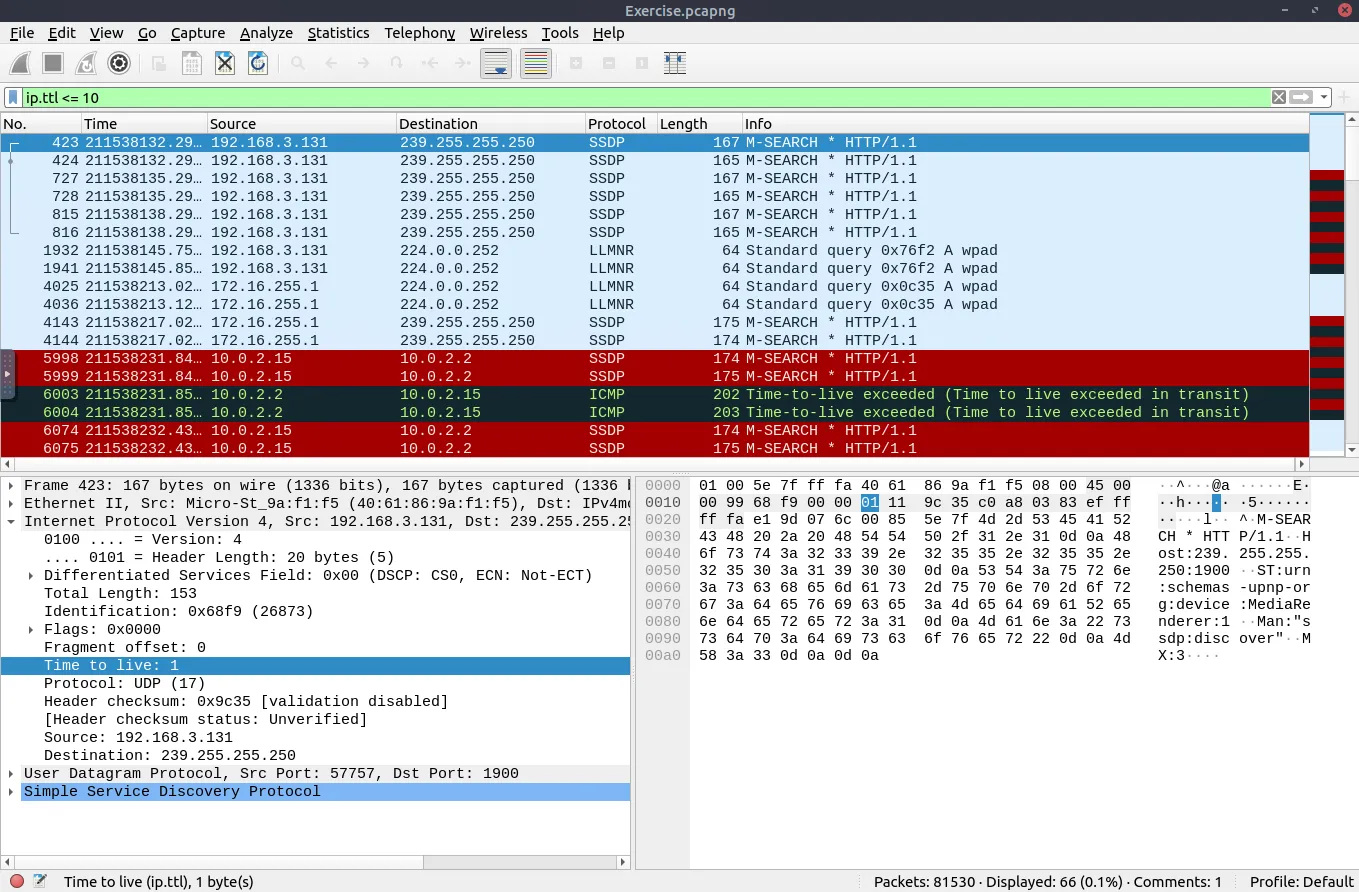 It returns 66 packets.
Task 3.3
What is the number of packets which uses “TCP port 4444”?
Answer: 632
Why? tcp.port == 4444 returns the value we are looking for. 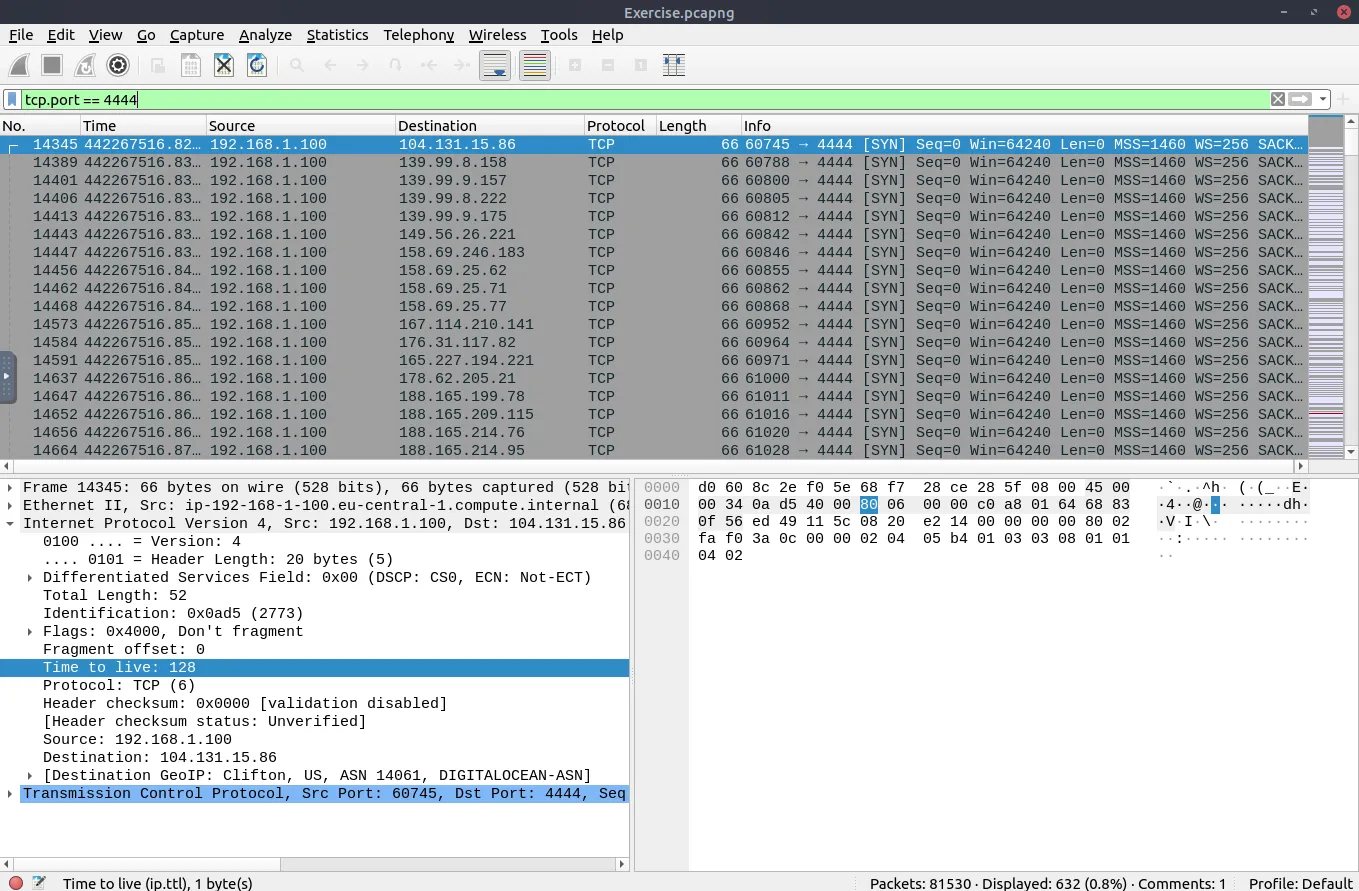
Task 3.4
What is the number of “HTTP GET” requests sent to port “80”?
Answer: 527
Why?
Here, we are given 2 tasks in one, looking for the HTTP GET method AND port 80. For that, we can use the && (AND) operator. http.reqiest.method == "GET" filters the http request and the other tcp.port == 80 returns the packets transferred via port 80. 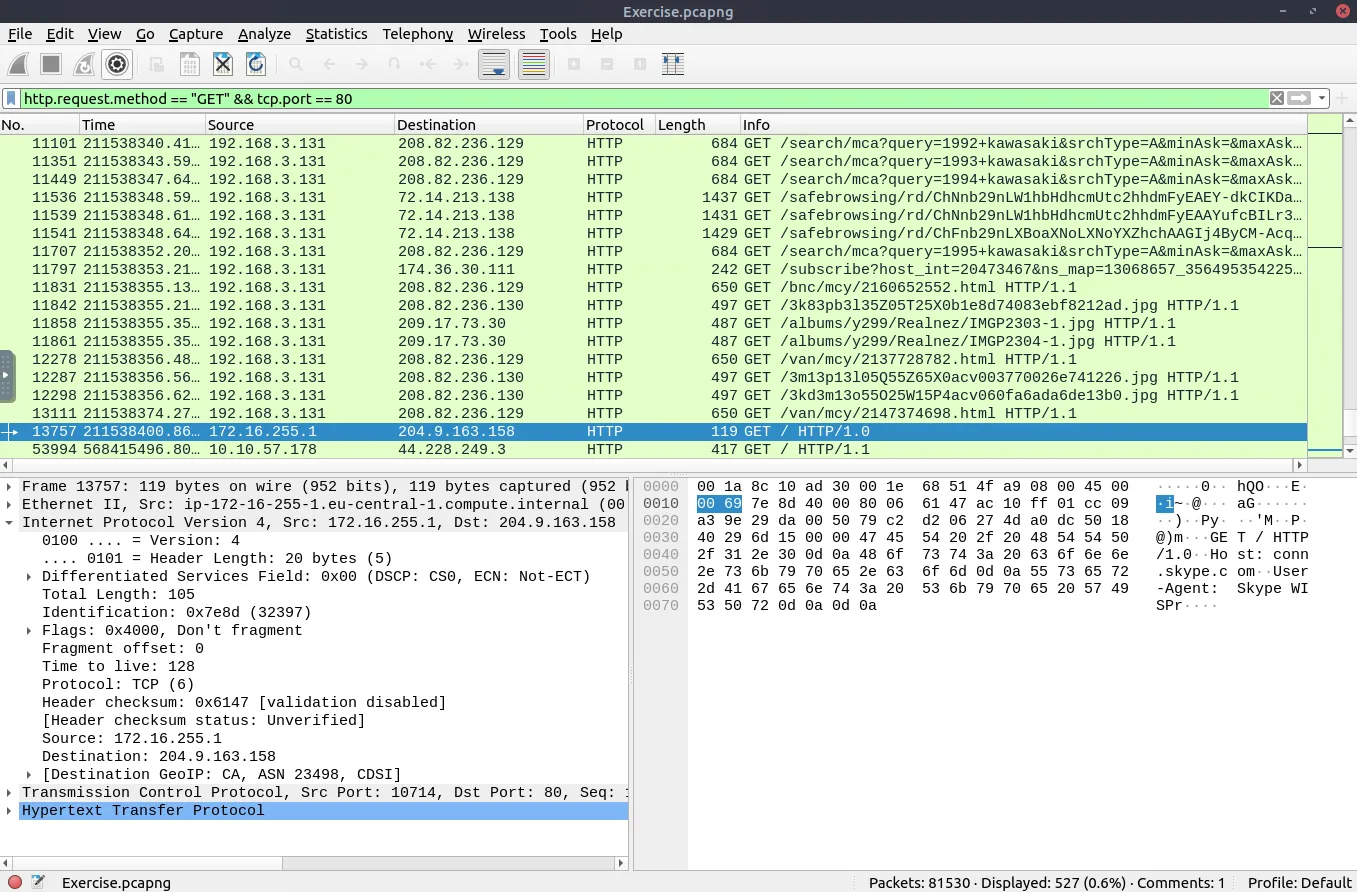
Task 3.5
What is the number of type A DNS Queries?
Answer: 51
Why? Honestly, I didn’t know the syntax for the task. So what I did was, searching for a file that contains the type A value, using DNS and looking at the Queries tab we can see the type A DNS. Right clicking it, then select as filter added the dns.qry.type == 1 and exposed all the packets that have the DNS Queries Type A, but we also get the failed ones. Which results in another problem, we need to add the && operator and look for dns.flags.response == 1 to only find the server’s reply, not the client request. 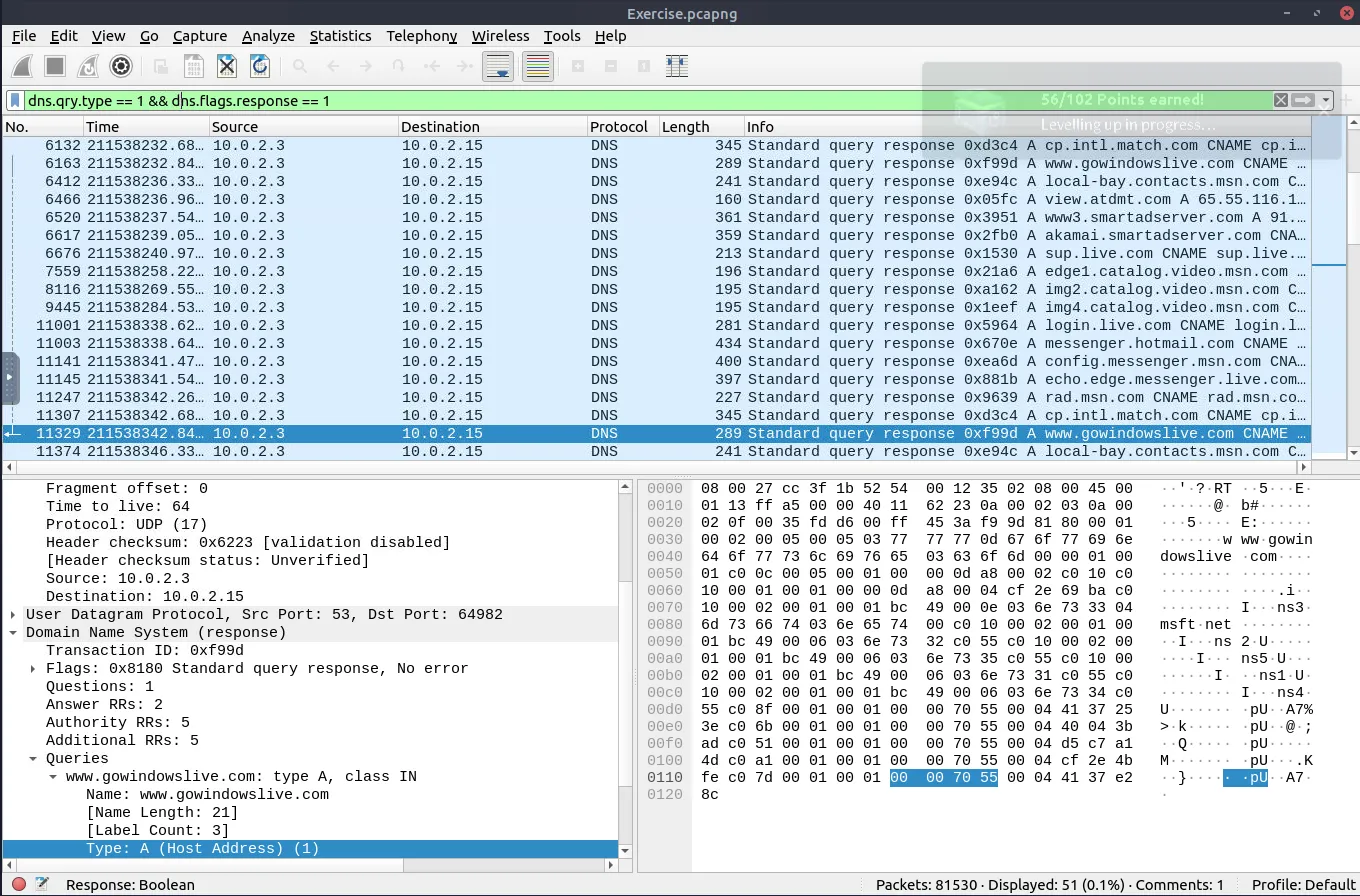
Task 4.1
Find all Microsoft IIS servers. What is the number of packets that did not originate from “port 80”?
Answer: 21
Why? As an similar fashion, no idea about which format is Microsoft IIS but we can use the contains operator to sort it out, first, we are selecting http.server contains "Microsoft-IIS". Which returns us all the Microsoft IIS servers, then we are tasked to look for packets that not originates from port 80. So, adding the && operator and tcp.srcport != 80 we got our answer. 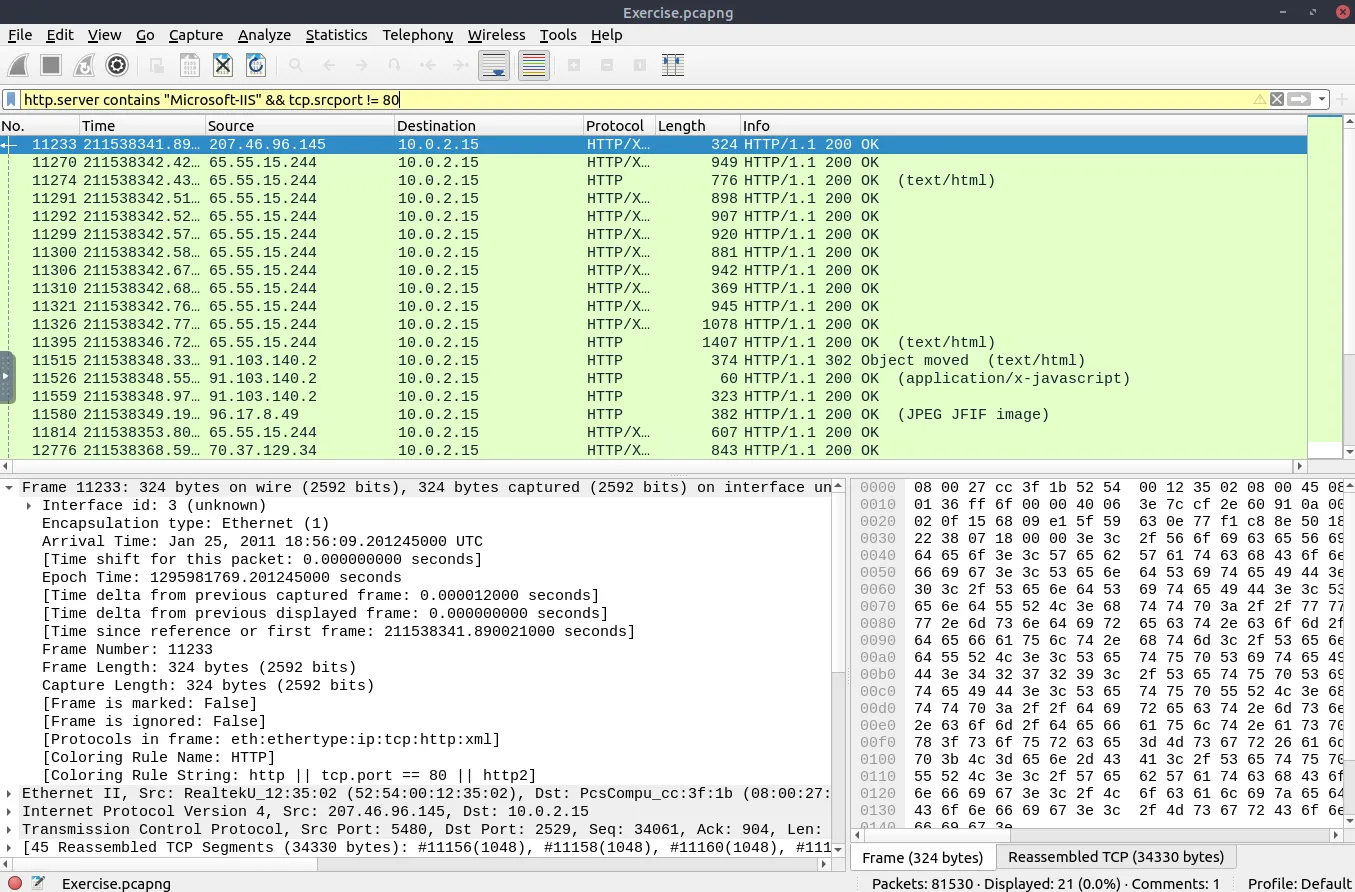
Task 4.2
Find all Microsoft IIS servers. What is the number of packets that have “version 7.5”?
Answer: 71
Why? Due to the last task, we can look at the version and simply add it to the filter, the packets resulted is the number of packets we are looking for. 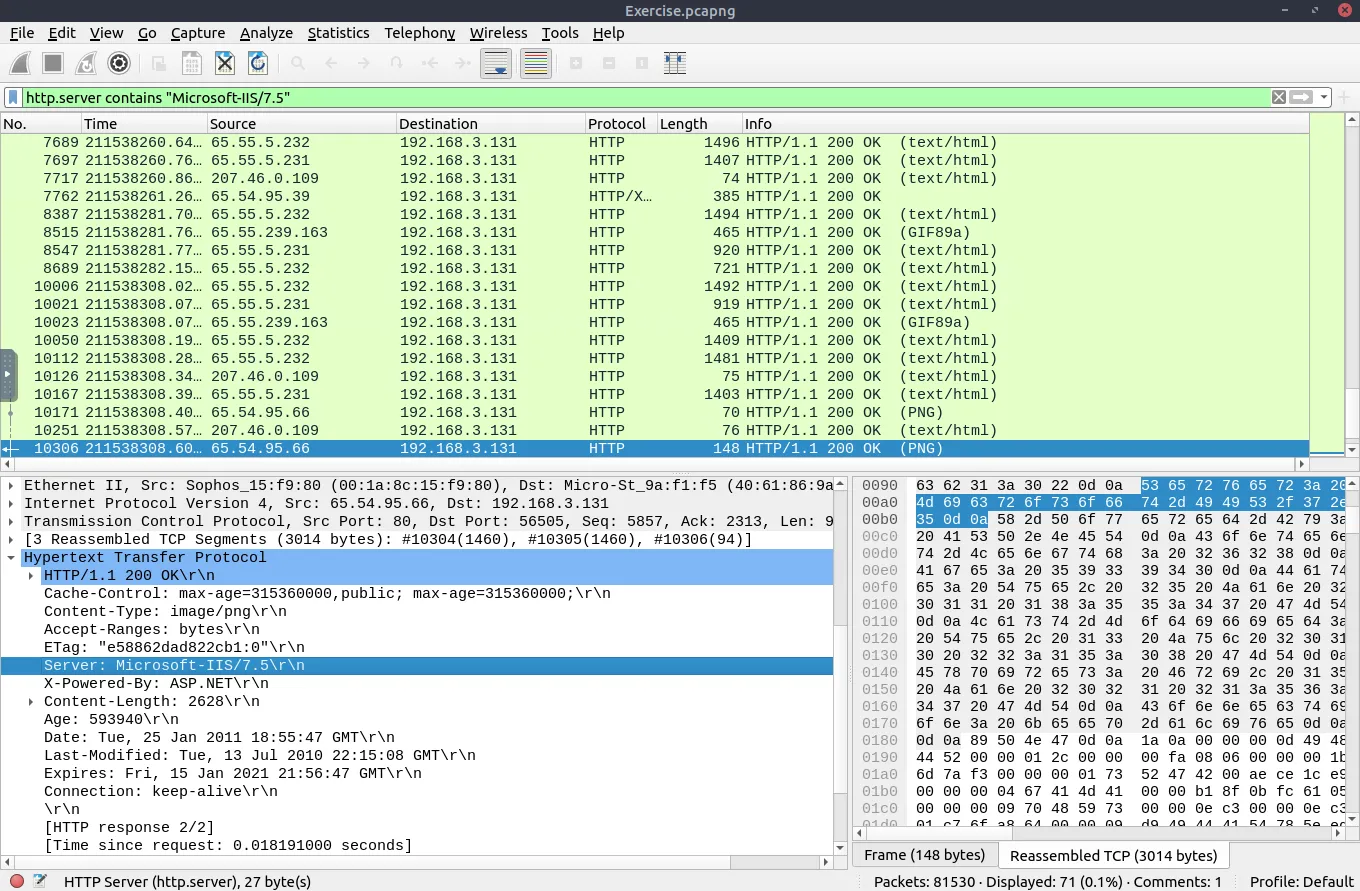
Task 4.3
What is the total number of packets that use ports 3333, 4444 or 9999?
Answer: 2235
Why? Instead of adding &&, we can use the IN {List} operator to find all the ports in an shorter way as presented by TryHackMe lesson. 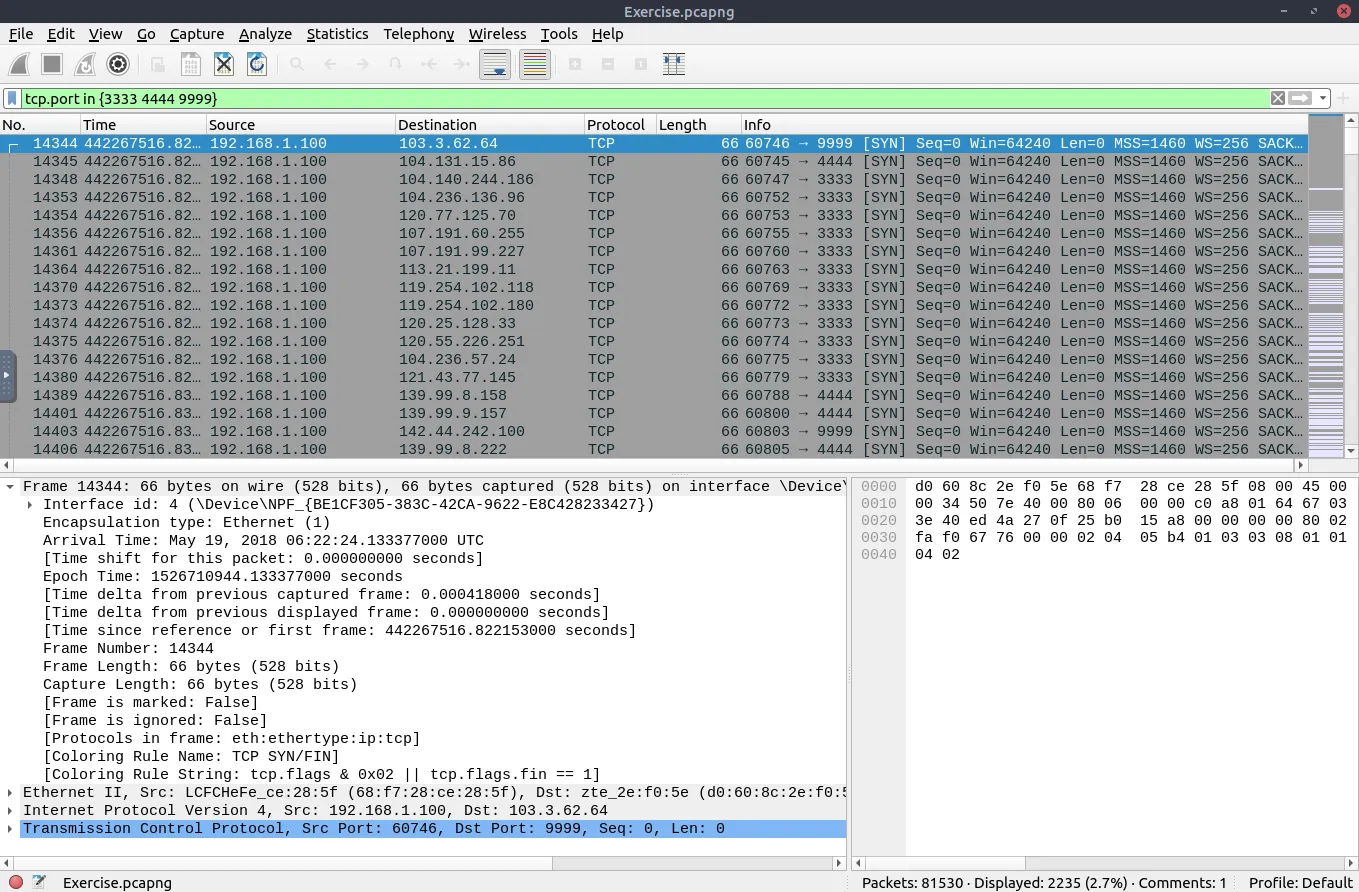
Task 4.4
What is the number of packets with “even TTL numbers”?
Answer: 77289
Why? We have the following syntax example: string(frame.number) matches "[13579]$" Based on that, we can change the frame number to match our task, in that case, TTL numbers using ip.ttl and matches operator to find all the even TTL numbers. 13579 are all the odd numbers, so we can basically change it to 02468 numbers to show the even numbers. 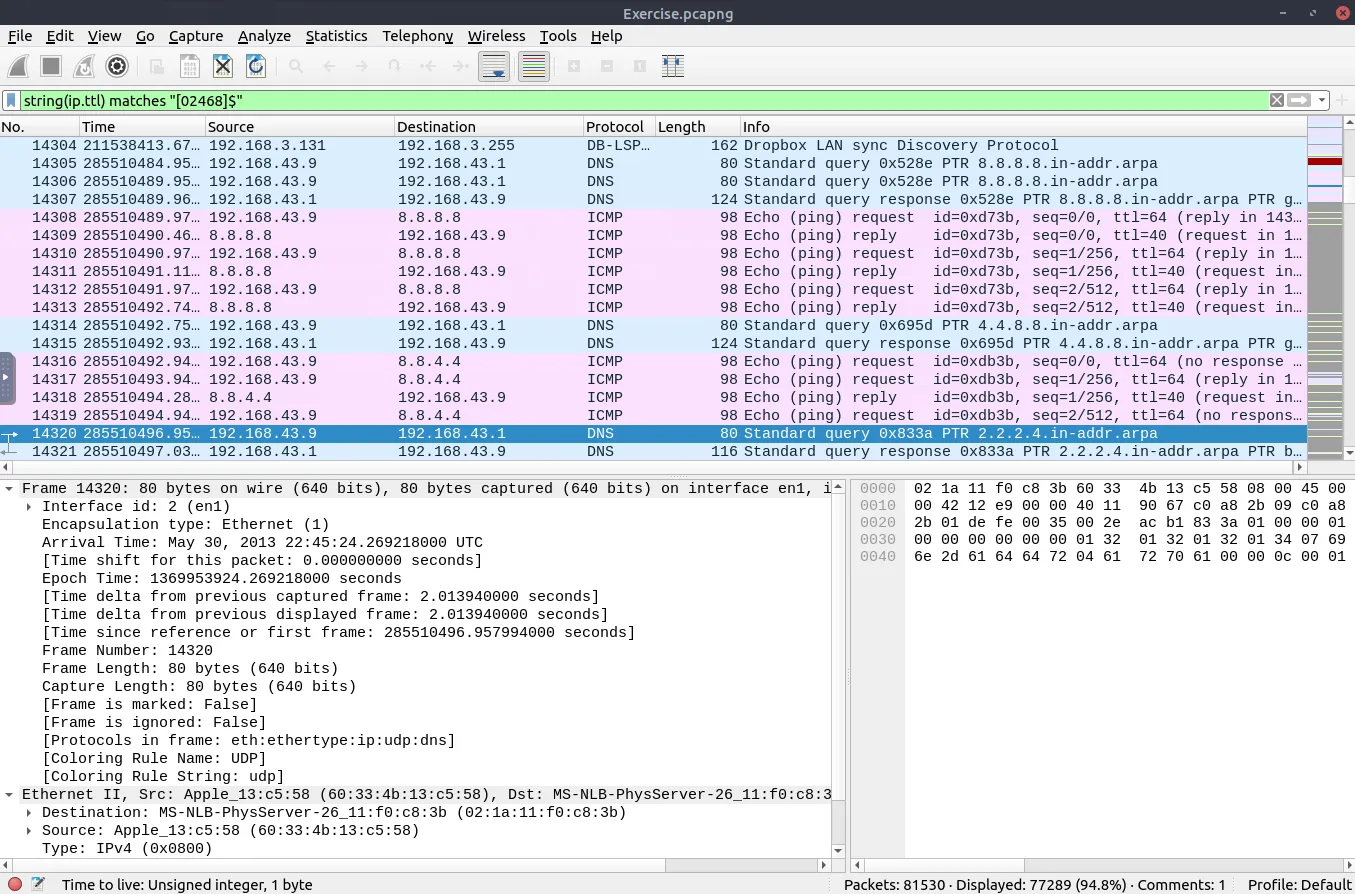
Task 4.5
Change the profile to “Checksum Control”. What is the number of “Bad TCP Checksum” packets?
Answer: 34185
Why? For that, we have to change the profile, we are going to Edit => Configuration Profiles (Or shortcut Ctrl+Shift+A) 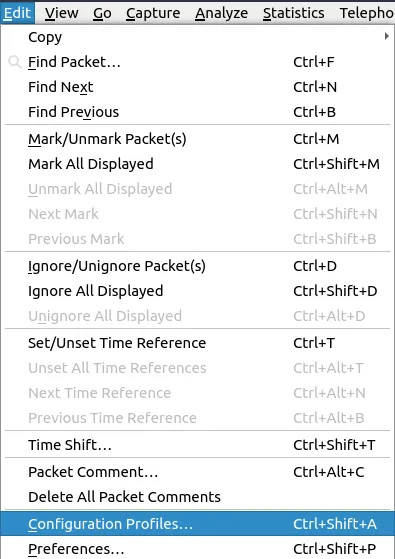
Switch it to the Checksum Control. 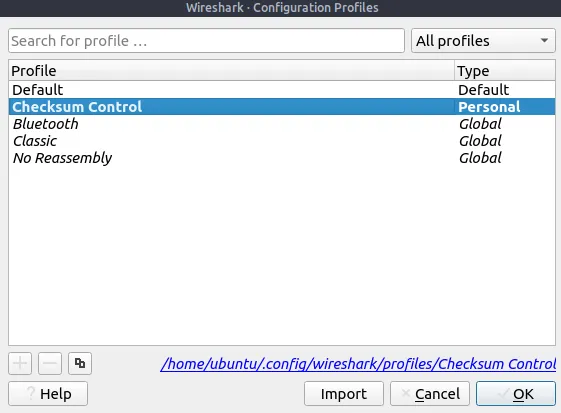
To filter Bad TCP Checksum we can use tcp.checksum.status == bad. 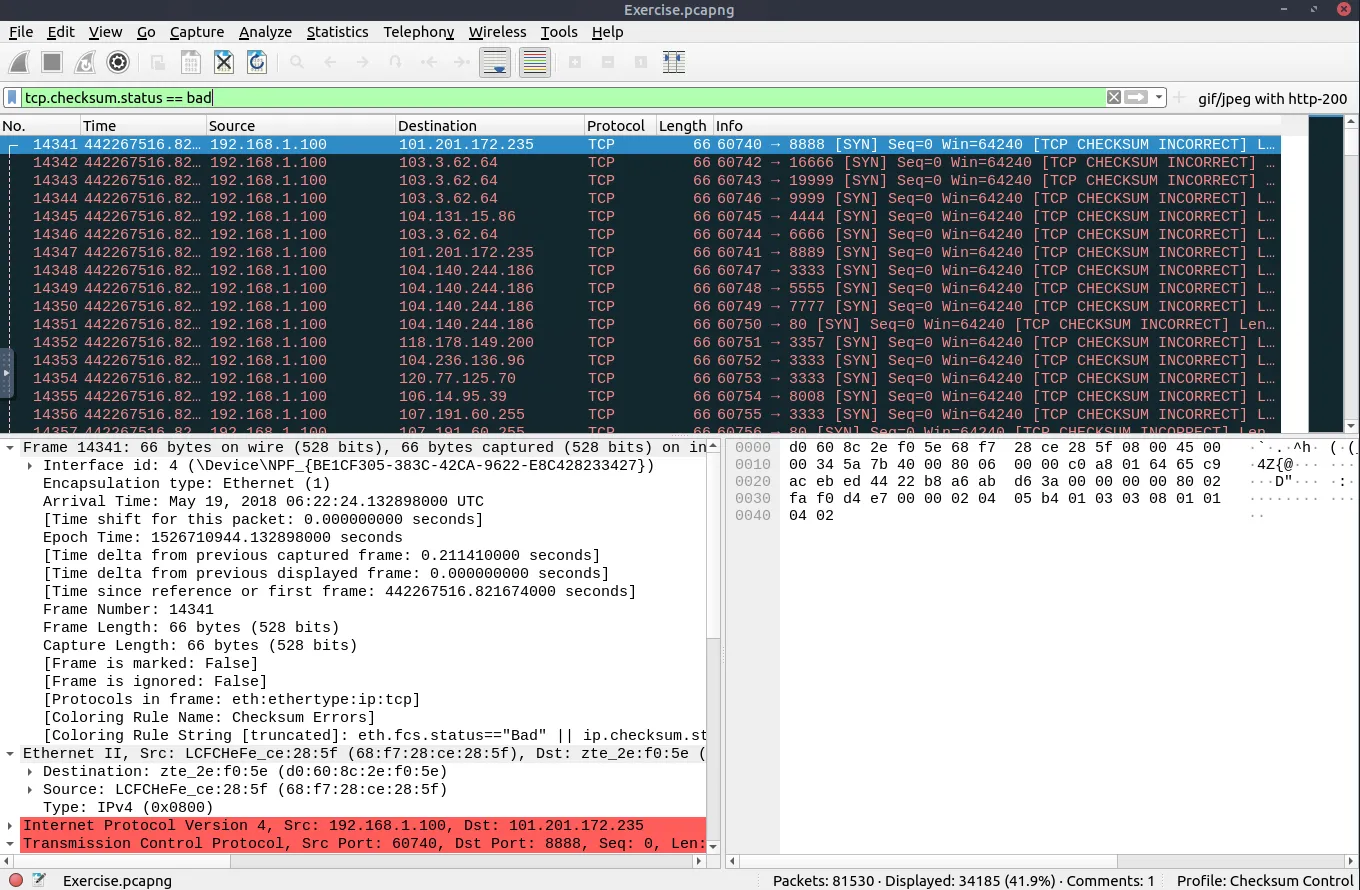
Task 4.6
Use the existing filtering button to filter the traffic. What is the number of displayed packets?
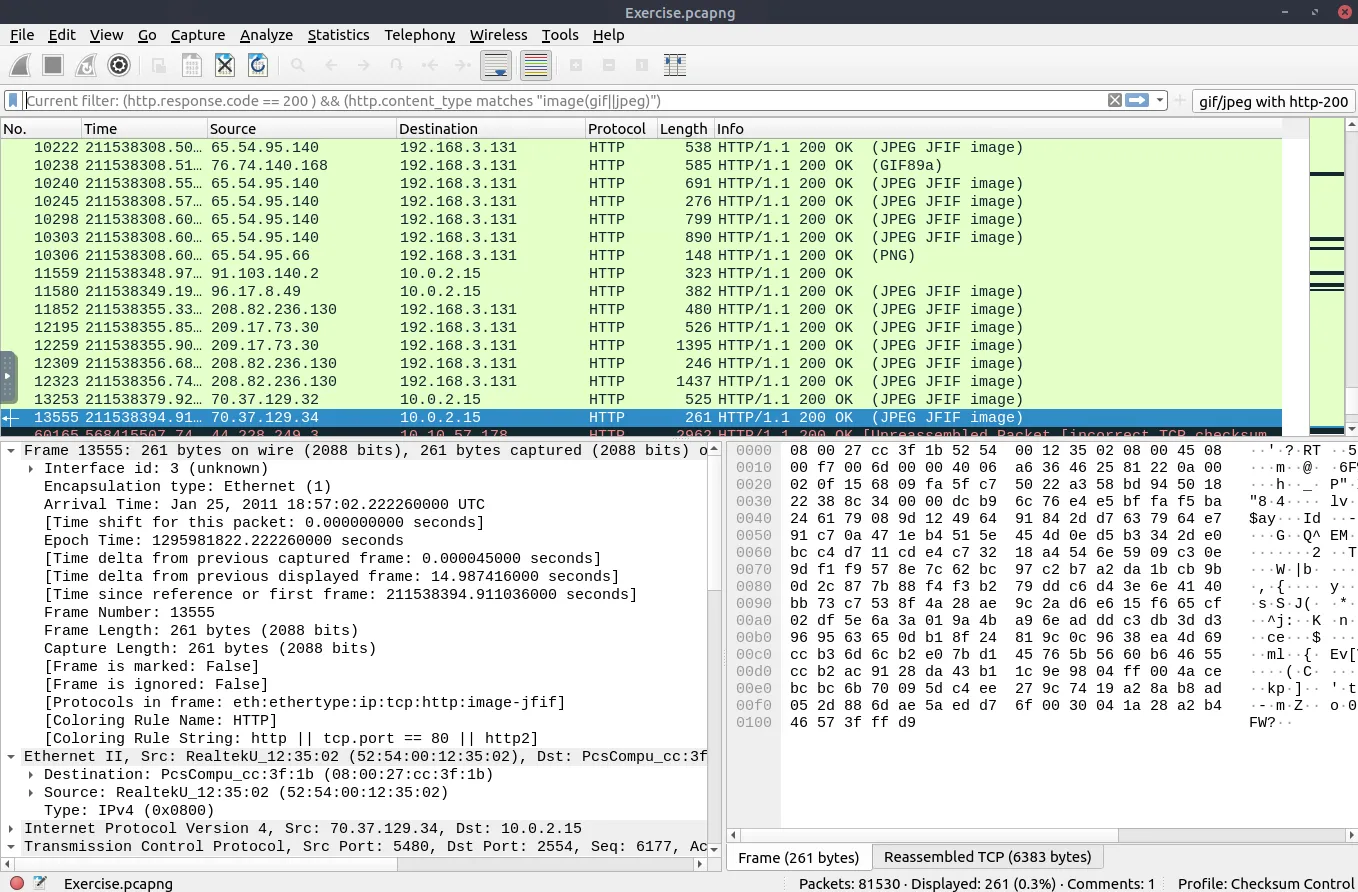
Answer: 261
Why? On the top right we can see a button "gif/jpeg with http-200" it is a shortcut for the filters. Pressing it results in the answer: 261 (Displayed packets)