
Phishing Analysis Fundamentals Walkthrough
Phishing Analysis Fundamentals. Header and body analysis of three practice emails. Nothing hard, but really important for beginners.
Summary
This room is more of an introduction for the phishing attacks, we are tasked to watch the source, do some header and body analysis and it is teaching us how the email works. Overall, really important foundation for the beginners.
Learning Objectives
- Learn the basics of email delivery
- Explore email header analysis
- Investigate and analyze email bodies
- Learn about the different types of phishing
- Analyze emails to identify potential security threats
The Email Address
Anatomy of an Email Address
- Username: User mailbox that identifies the specific recipient’s mailbox on the email server
@symbol: Separates the username from the domain and tells the system where to route the email- Domain name: Specifies the mail server responsible for receiving the message
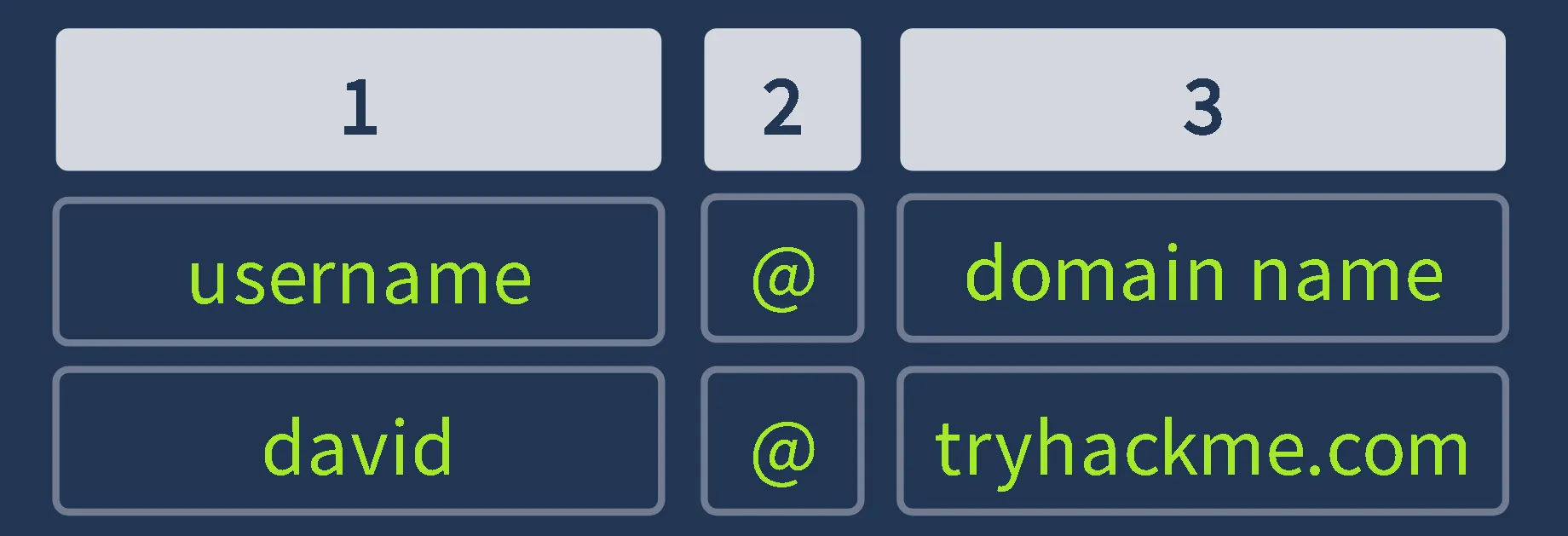
We can use the analogy of the home mailing address:
- domain = streets or buildings
- username = specific person mailbox
Email Delivery
These protocols work together to deliver your message to the recipient, each protocol with a different role:
- Simple Mail Transfer Protocol (SMTP): Sends emails
- Post Office Protocol (POP3): Downloads emails to a device
- Internet Message Access Protocol (IMAP): Syncs emails across devices
When receiving emails, your email service will use either POP3 or IMAP, depending on how your mailbox is configured. Let’s take a look at both of these protocols below:
POP3
- Emails are downloaded and stored on a single device
- Sent messages are stored on the single device from which the email was sent
- Emails can only be accessed from the single device to which the emails were sent
- Emails are typically removed from the server after download
IMAP
- Emails are stored on the server and can be downloaded to multiple devices
- Sent messages are stored on the server
- Syncs messages across multiple devices
- Emails remain on the server unless explicitly deleted
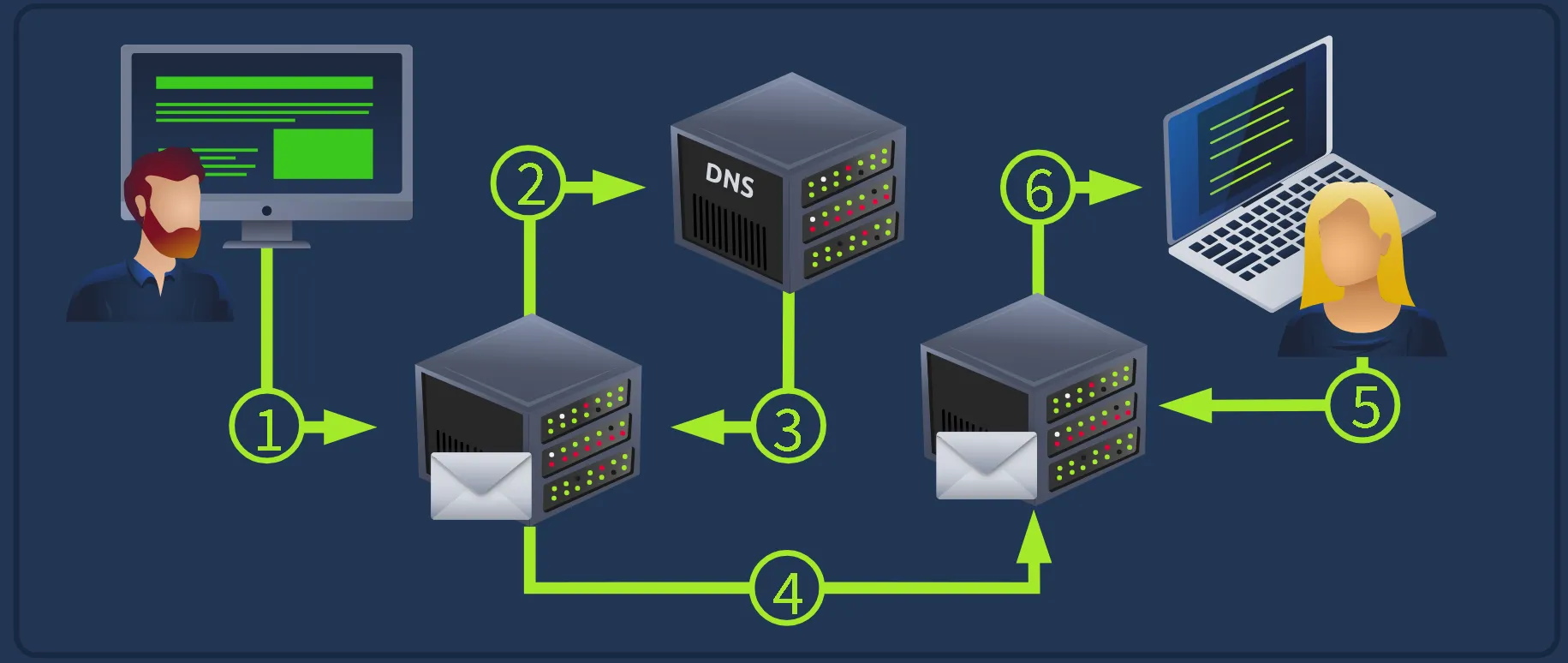
An Email’s Journey
- User sends an email: The sender’s email client sends the message to their mail server using SMTP
- Mail server queries DNS: The sending server asks DNS for the recipient domain’s mail server
- DNS responds: DNS returns the address of the recipient’s mail server
- Email is delivered: The message is sent across the Internet to the recipient’s server
- The recipient checks their mailbox: The recipient’s email client connects to their mail server
- Email is retrieved: The message is downloaded (POP3) or synced (IMAP) to the recipient’s device
Email Headers
An email consists of two main parts:
- Email header: Contains metadata about the message, such as sender and the servers involved in delivery
- Email body: Contains the actual message content, which may be plain text or HTML
- From: The sender’s email address
- To: The receiver’s email address
- Reply to: Address where replies are sent (not required)
- Subject: The email’s subject line
- Date: The time and date that the email was sent

Viewing the Message Source Another method to obtain the same email header information, and more, is by viewing the raw message data
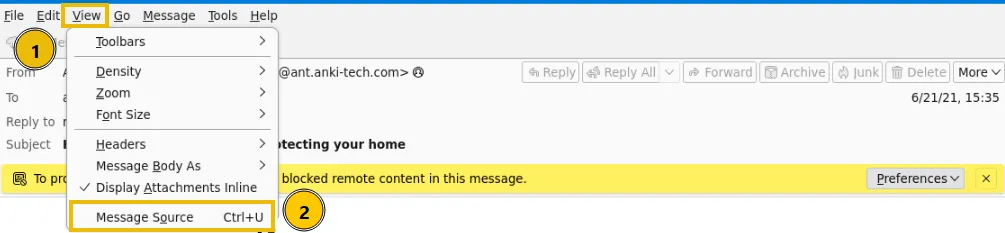
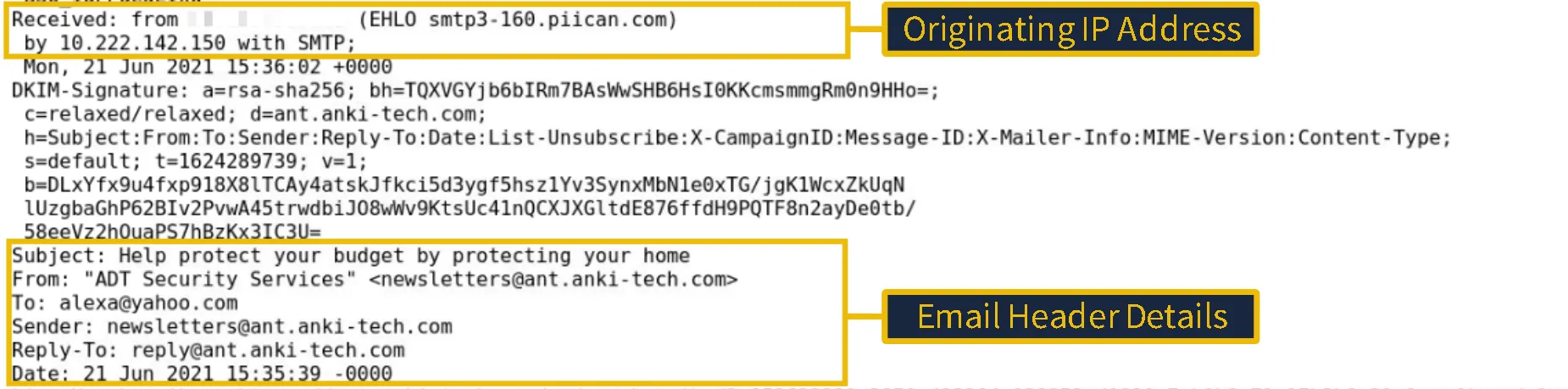
Let’s take a look at the snippet of the raw message from the email1.eml file. You can see in the screenshot below that we have a wealth of information available to us for analysis, including the originating IP address and full email header details. Let’s use this information to answer the task’s questions below.
Email Body
Emails are sent as text only or formatted in HTML. HTML supports elements such as images, links, and styling. Most email clients show you the rendered content. You can also inspect the underlying source to see how the message is structured, spot embedded elements, and look for signs of phishing or malicious content. 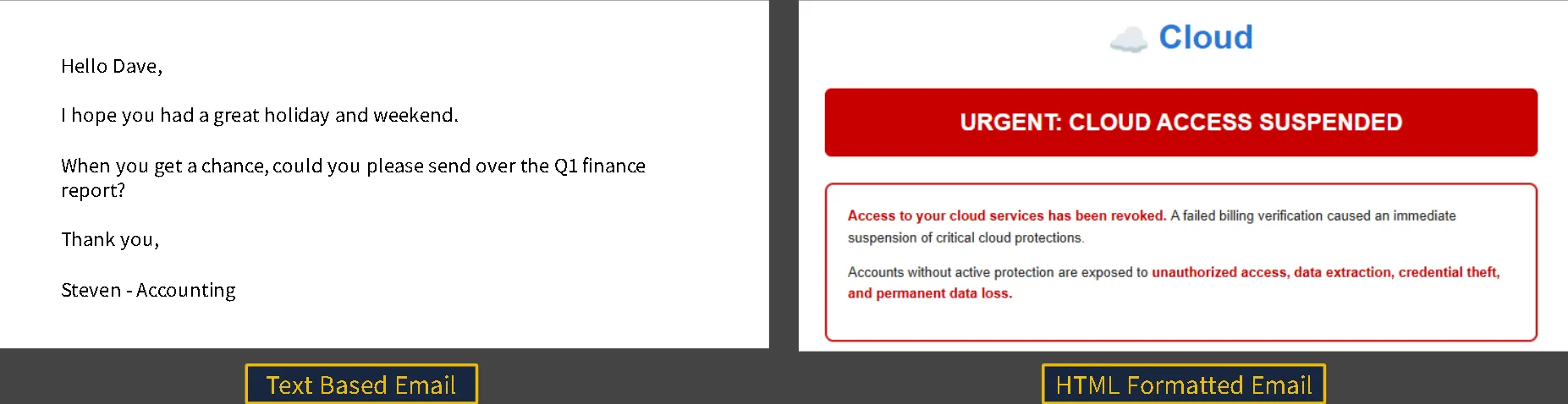
Viewing HTML Source Code
We can also examine the source of the email body. This allows us to see the raw HTML that renders the message. Let’s compare the rendered version of the email1.eml message with its underlying HTML. You may notice that some images are not displayed because Thunderbird blocks them by default. By viewing the raw source, we can clearly see how these HTML elements are structured behind the scenes.
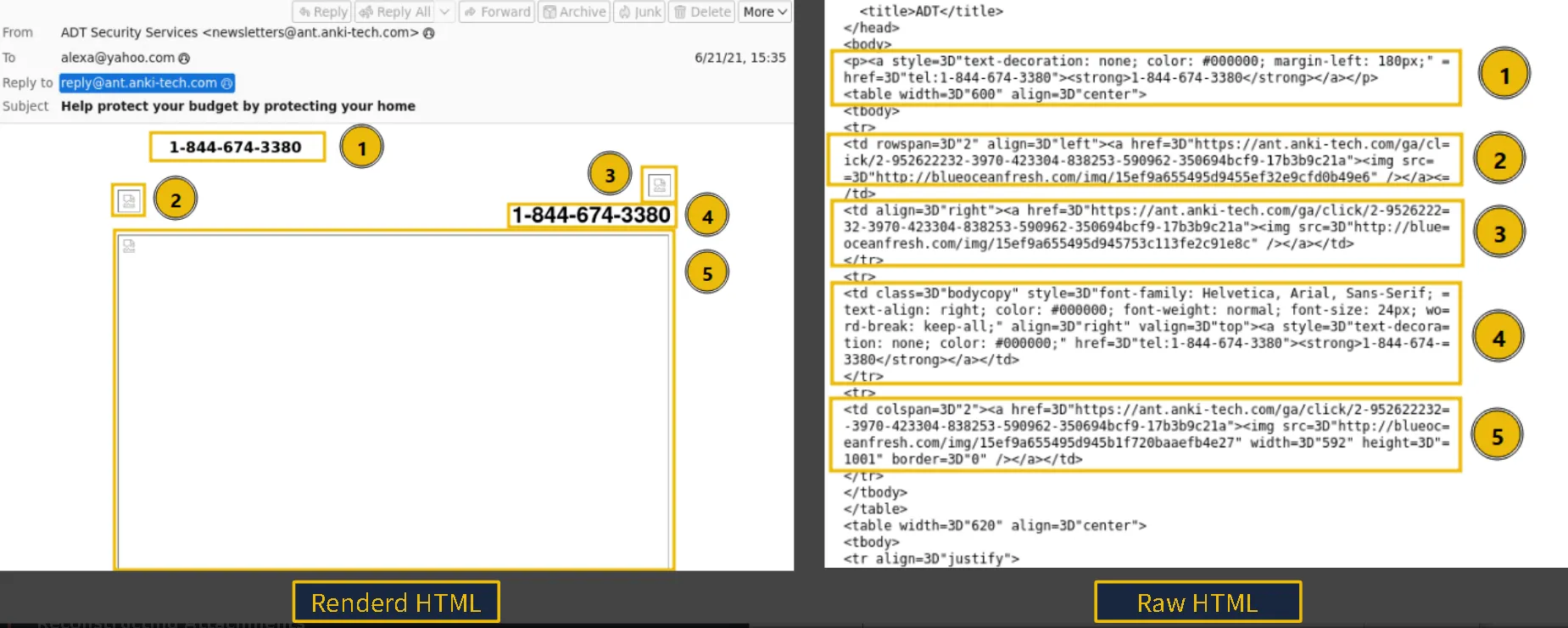
Reconstructing Attachments
When we inspect the source, we can identify several important headers associated with the attachment:
- Content-Type indicates the file type
application/pdf - Content-Disposition specifies that the file is an attachment and includes its filename
- Content-Transfer-Encoding shows that the file is
base64encoded
The encoded base64 that follows represents the file itself. This data can be decoded to reconstruct the original attachment using either CyberChef or a base64 to PDF converter. 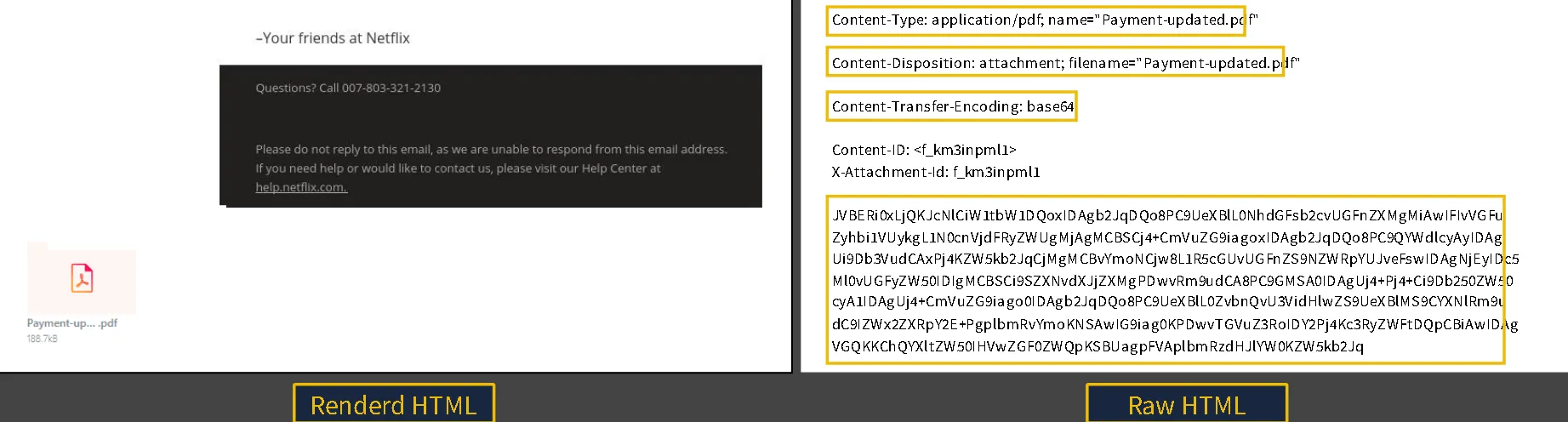
Types of Phishing
Different types of malicious emails can be classified as one of the following:
- Spam: Unsolicited bulk emails sent to a large number of recipients. A more malicious form of spam is often called malspam.
- Phishing: Emails that impersonate a trusted entity to trick recipients into revealing sensitive information.
- Spear Phishing: A targeted form of phishing aimed at a specific individual or organization, often using personalized information.
- Whaling: A type of spear phishing that specifically targets high-level executives (CEO, CFO) to obtain sensitive data or financial access.
- Smishing: Phishing attacks conducted via SMS or text messages, targeting users on mobile devices.
- Vishing: Phishing attacks carried out through voice calls, where attackers use social engineering over the phone.
Anatomy of a Phishing Email
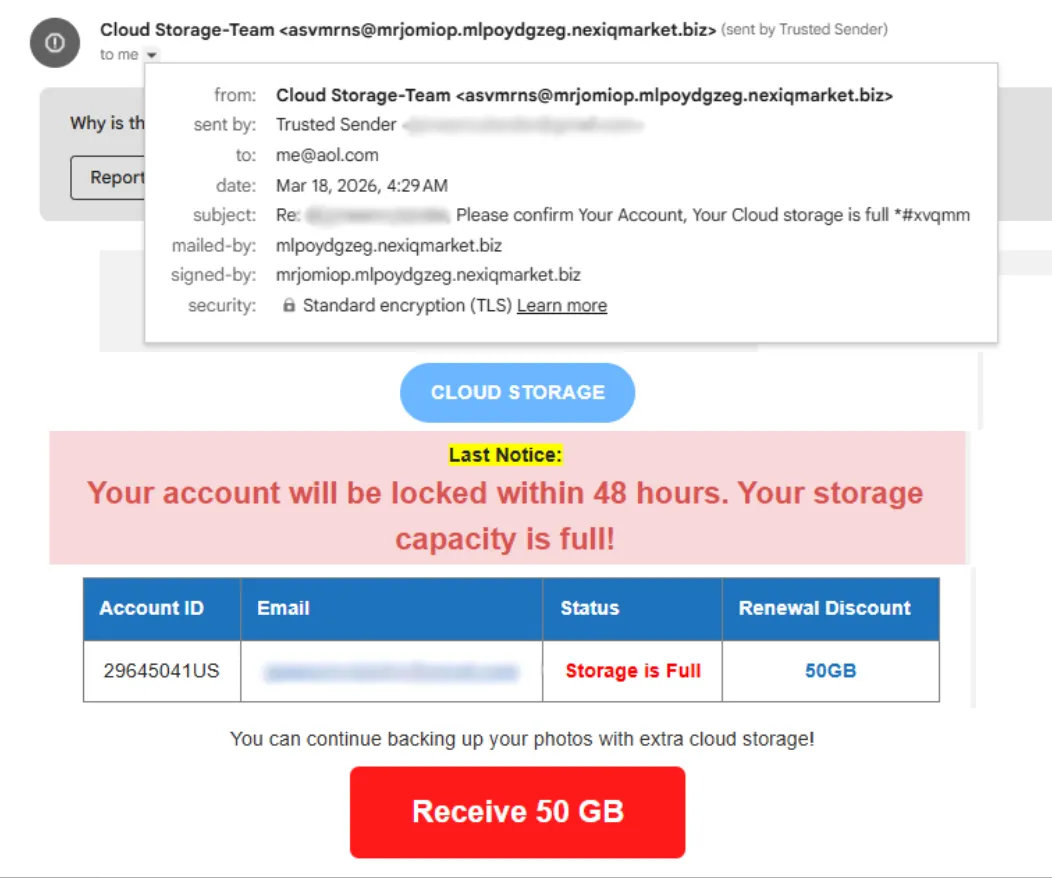
Below are some common characteristics of phishing emails:
- Spoofed From Address: The sender’s email is spoofed to appear as a trusted entity (
noreply@microsof[.]com) - Urgent Subject or Message: The email creates a sense of urgency (“Your account will be locked in 24 hours”)
- Brand Impersonation: The email is designed to mimic a legitimate organization (logos or colors matching a real company)
- Grammar & Spelling Issues: The message may contain errors, though with AI these are now less common (awkward phrasing or unnatural wording)
- Generic Content: The message lacks personalization (“Dear Customer” instead of your name)
- Hidden or Shortened Links: Hyperlinks may disguise their true destination (
bit[.]ly/secure-login) - Malicious Attachments: Attachments are included and disguised as legitimate files (
invoice[.]pdf[.]exe)
Safe Analysis
Defanging makes URLs, domains, or email addresses unclickable to prevent accidental clicks that could lead to a security breach. It works by replacing special characters, such as @ in an email or . in a URL, with alternate characters:
- Original URL:
http://www.suspiciousdomain.com - Defanged URL:
hxxp[://]www[.]suspiciousdomain[.]com
Mini-practice
I will not write the first questions from tasks 1-4. In the fifth task we are asked to look for details in email2.txt, which is a header that we can analyze.
First task: What is the Content-Type of the attachment? We can check it on the top of the document. 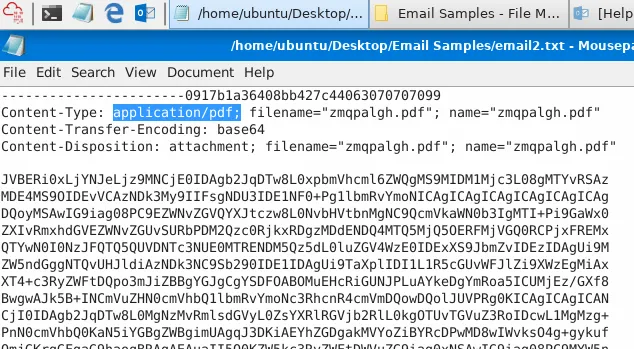
What is the name of the attachment from the previous question?
Right next to the type, we can find the filename, an pdf file with the name: zmqpalgh.pdf 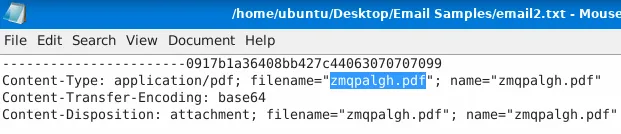
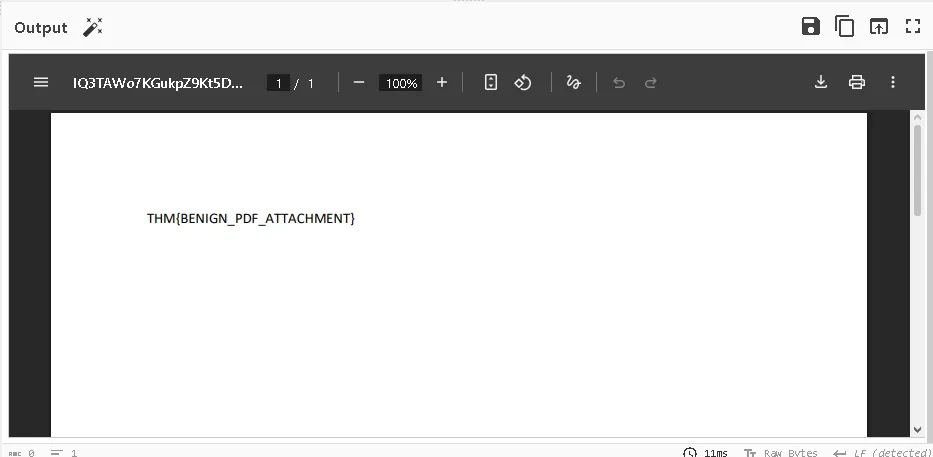
For the flag, we are tasked to decode the code from the .txt file.
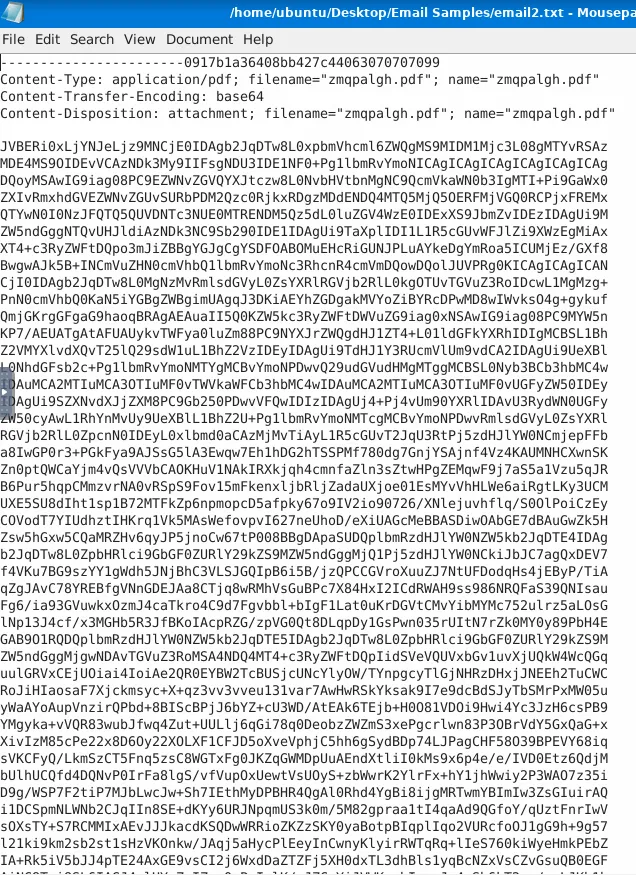
We can copy everything and decode on the CyberChef platform. 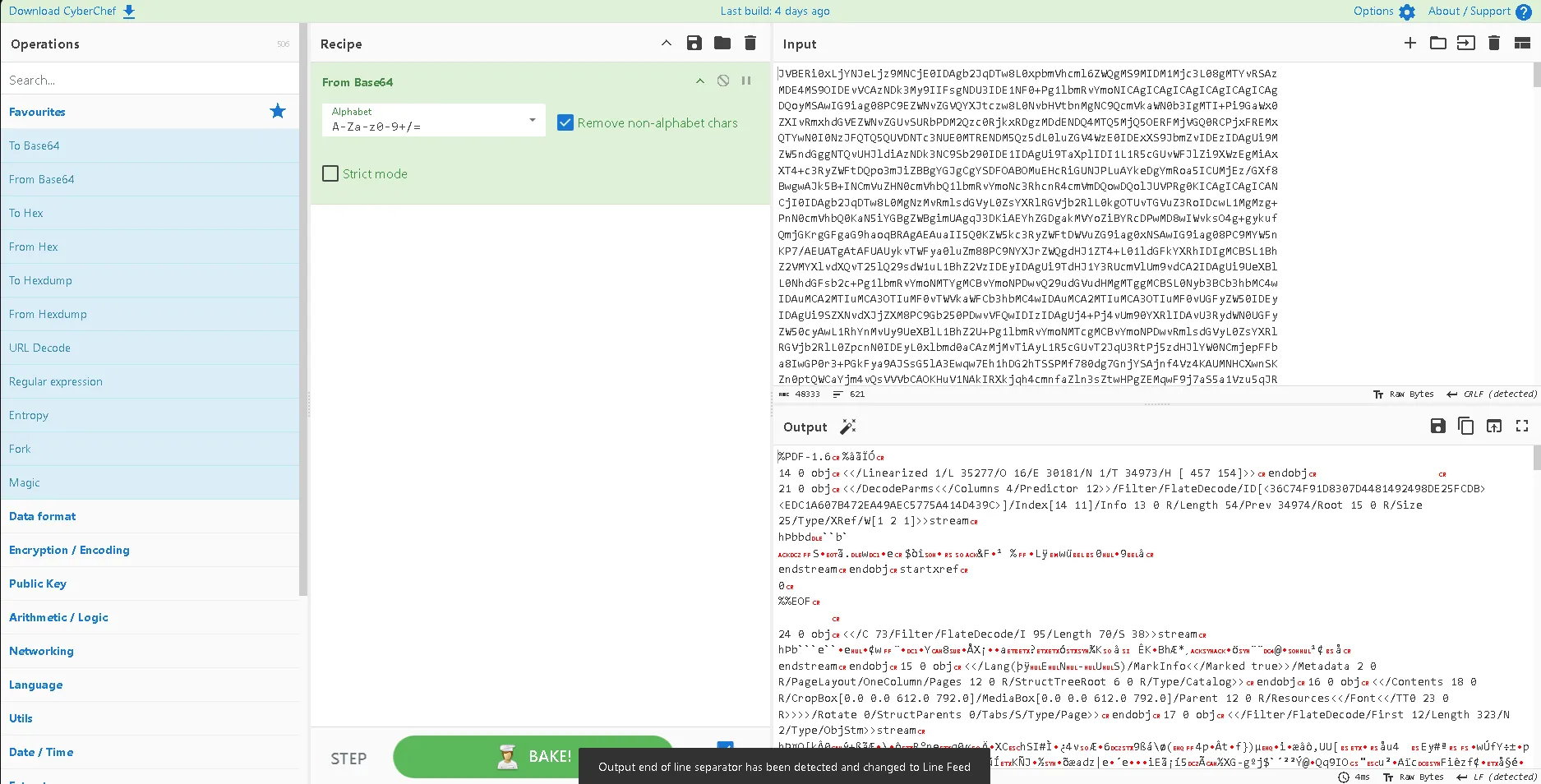 Still, nothing really stands out, that’s because we need a filter to render the string from the raw format, we can do that with the little tool near the output and the results will be:
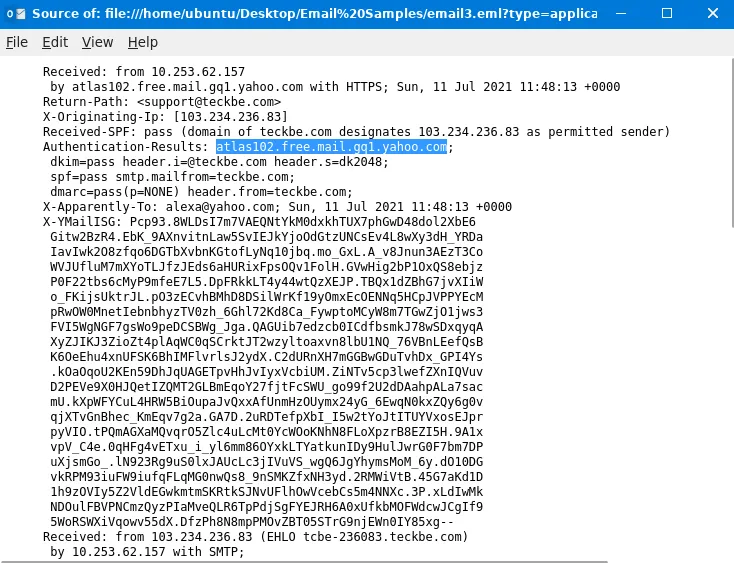
We are switching to the email3 for the following tasks.
Which reputable organization is being spoofed in this phishing attempt?
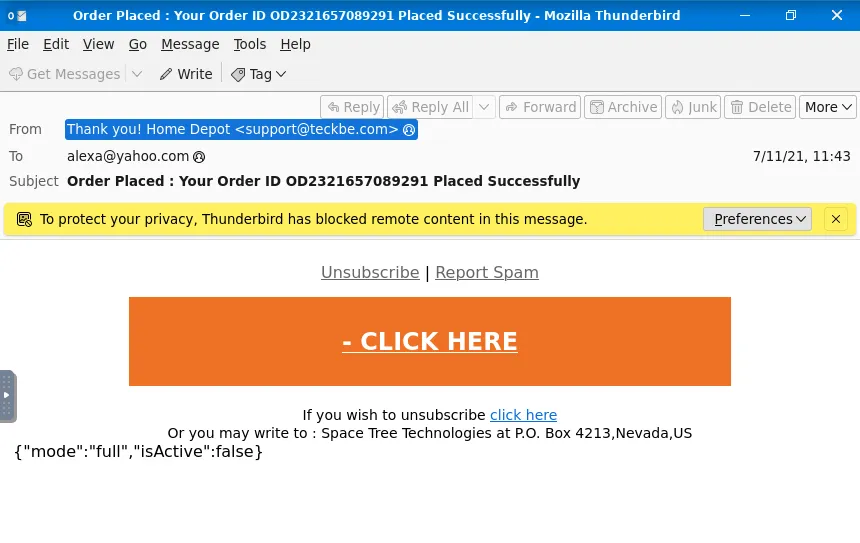
What is the sender’s email address? We can open the source and look at the sender details: 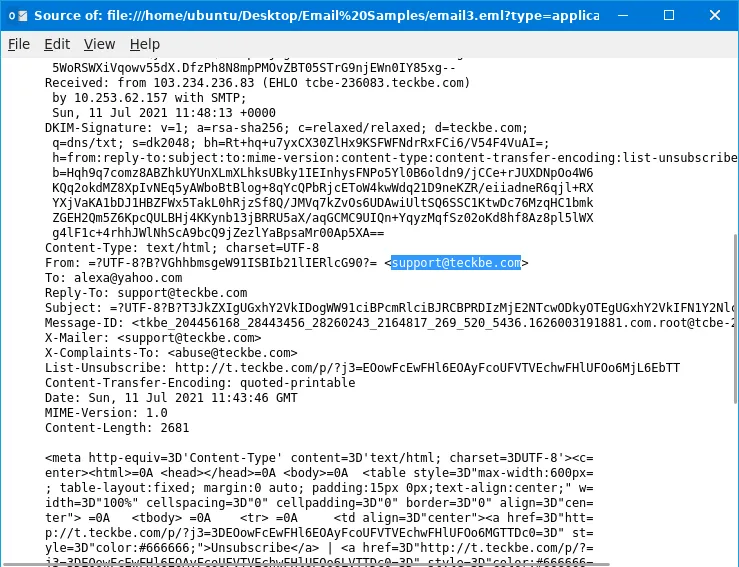
Inspect the email message source.
What is the defanged X-Originating-IP? We can either use a tool or just switch the . with [.].
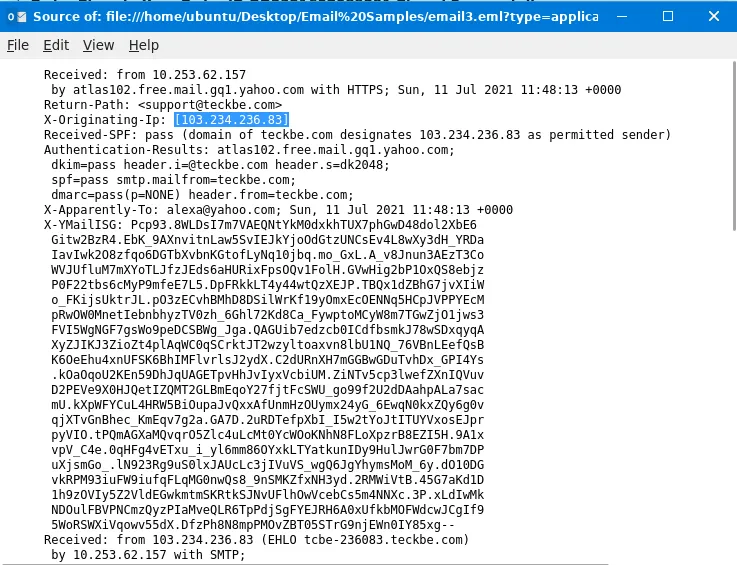
Which mail server generated the Authentication-Results header?
Q&A
Click to view TryHackMe Room Q&A
Identify the domain used in the following email address:
[email protected]
Answer: tryhatme.comWhich protocol is responsible for sending an email from a client to a mail server?
Answer: SMTPWhich service is used to look up the recipient domain’s mail server?
Answer: DNSBob wants to access his email from multiple devices, including his phone and laptop.
Which protocol should he use?
Answer: IMAPWhat is the full subject line of
email1.eml?
Answer: Help protect your budget by protecting your homeView the message source of
email1.emlusing Thunderbird in your VM.
What the IP address listed as theX-Originating-Ip?
Answer: 43[.]255[.]56[.]161Open up the
email2.txtfile to view the source of an attachment.
What is theContent-Typeof the attachment?
Answer: application/pdfWhat is the name of the attachment from the previous question?
Answer: zmqpalgh.pdfDecode the base64 string using either a PDF converter or CyberChef.
What is the hidden flag value?
Answer: THM{BENIGN_PDF_ATTACHMENT}Which reputable organization is being spoofed in this phishing attempt?
Answer: Home DepotWhat is the sender’s email address?
Answer: support@teckbe[.]comInspect the email message source.
What is the defangedX-Originating-IP?
Answer: 103[.]234[.]236[.]83Continue analyzing the email message source.
Which mail server generated theAuthentication-Resultsheader?
Answer: atlas102[.]free[.]mail[.]gq1[.]yahoo[.]comWhat attack, signified by the acronym BEC, uses a compromised email to trick employees into fraud?
Answer: Business Email Compromise